Loyalty & Rewards
Why Loyalty Widget Not Showing on Shopify After a Theme Update?
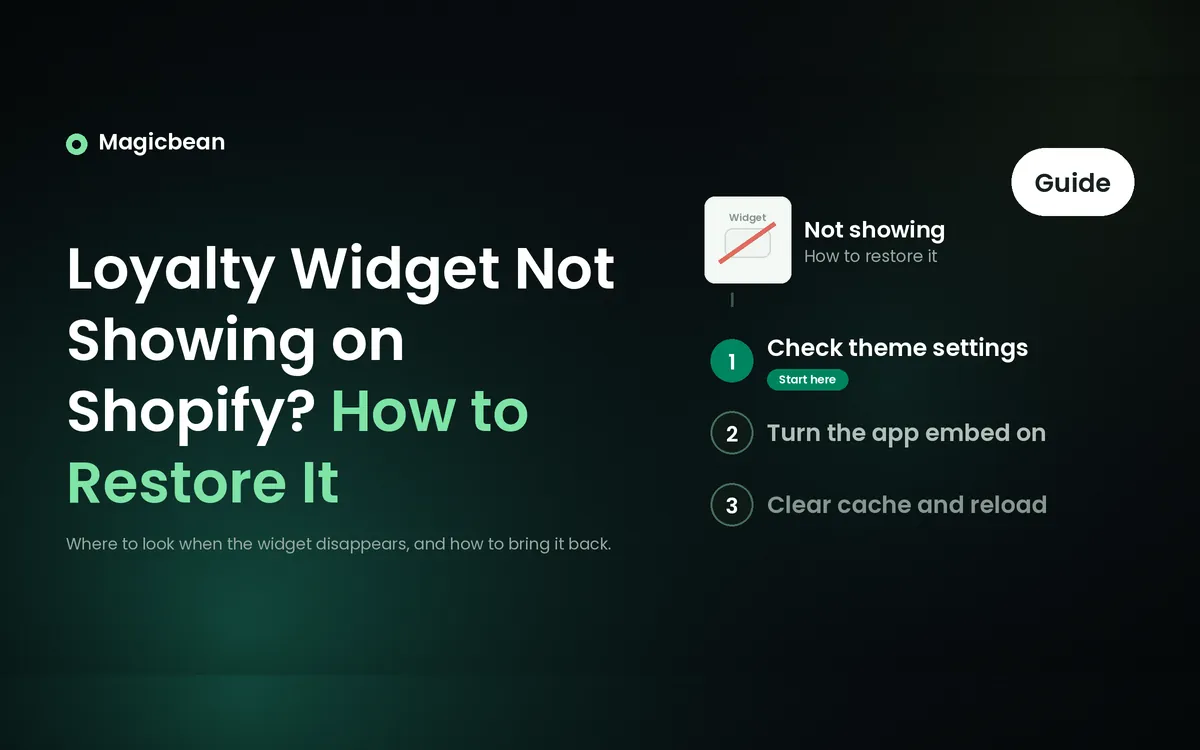
Your rewards launcher was there last week. You updated your theme, or published a new one, and now the launcher is gone, the cart has no points box, or /pages/rewards loads blank. A loyalty widget not showing on Shopify after a theme change is a display problem. Your customers’ points and VIP tiers are still stored in the loyalty app and in Shopify, outside the theme files.
An update keeps your app embeds. A switch to a new theme starts your app embeds from zero. Either way, the fix is one of six settings in the theme editor or the loyalty app, and the table below shows which one to check first.
The problem is easy to miss for weeks. In an October 2025 r/shopify thread, a merchant found out customers couldn’t see their points only after another store owner suggested a previous theme switch had removed the launcher. A second merchant replied that the same thing had gone unnoticed on their store for a month. A hidden launcher can look like a loyalty program that isn’t converting when shoppers simply can’t see it. Storefront problems also show up in how merchants rate these apps. Reliability comes up in 36.7% of one- and two-star loyalty app reviews, about double the 17.8% rate across all written reviews, according to Magicbean’s Shopify loyalty app reviews study.
| What disappeared | Most likely cause | Go to |
|---|---|---|
| Floating launcher or rewards panel | App embed is off on this theme or market | Fix 1 |
| “Earn points” line on product or account pages | App block missing from the page template | Fix 2 |
| Header points counter or an older widget, after an update | Custom code skipped during the update | Fix 3 |
| Points redemption inside the cart drawer | Cart drawer class name changed | Fix 4 |
| /pages/rewards is blank or unstyled | Page template not set up on the new theme | Fix 5 |
| Widget visible in the theme editor only | Visibility rule, delay or wrong theme in preview | Fix 6 |
Key Summary
- Open the theme editor on your live theme, go to App embeds, switch your loyalty app on and click Save. That brings back most floating launchers.
- Product page blocks, cart drawer placement and rewards page templates belong to each theme separately, so they can stay broken after the embed is back on.
- Before you publish any theme, check the draft in an Incognito window as a logged-in test customer, on mobile and desktop.
Why theme updates break loyalty widgets (and why some don’t)
Merchants say “I updated my theme” about three different actions, and Shopify treats your loyalty app differently in each. The table compares them, based on Shopify’s help docs on updating themes and switching themes.
| Theme change | How it happens | App embeds and app blocks | Custom code in theme files |
|---|---|---|---|
| Automated update | Shopify applies bug and security fixes to Theme Store themes | Not changed | Bug and security fixes only, no change to settings or content |
| Manual version update | Online Store > Themes > Add to draft themes, which creates “Updated copy of [theme]” | Copied to the new version | Dropped wherever the theme developer changed the same file |
| New theme, fresh install or .zip upload | You publish a different theme or a fresh copy | Embeds start switched off, blocks and page templates start empty | Nothing carried over |
The manual update is where most loyalty widgets break. Shopify copies theme editor customizations into the new version, including app embed and app extension settings, and it keeps the Templates folder and Config/settings_data.json. What it can skip are manual code edits and changes an app made to theme files on your behalf. When the theme developer changed the same file in the new release, the draft theme card shows “Theme added: code edits could not be included”. Older loyalty installs that pasted a snippet into theme.liquid or header.liquid lose that snippet here.
A new theme is a clean slate. Shopify keeps your products and pages because they’re managed in the admin, but theme editor content and settings are unique to each theme. LoyaltyLion’s help center spells this out for its own embed. A theme copied from one that didn’t have the app embed switched on starts with it off, even if your old live theme had it on.
Loyalty widget not showing on Shopify? 6 causes and fixes
The fixes run from the most common cause to the least. Start with Fix 1 if the floating launcher is gone, or jump straight to the fix the triage table points to.
1. Re-enable the app embed after the theme update
- In Shopify admin, go to Online Store > Themes and click Customize on the live theme, or on the draft you’re about to publish.
- Click the App embeds icon in the left sidebar.
- Switch your loyalty app’s embed on.
- Click Save. If you close the editor without saving, the embed stays off.
The launcher should appear in the editor preview straight away, and on the storefront after a refresh. If the toggle was already on, check two more things.
- Two embeds for one feature: Yotpo’s Loyalty Spotlight needs both the Loyalty Spotlight Drawer embed (labeled Yotpo Spotlight Drawer in Yotpo’s setup steps) and the Yotpo Loyalty & Referrals embed, according to Yotpo’s Spotlight help doc. Our Yotpo Loyalty review covers the rest of its storefront setup.
- Markets: stores with more than one market get a Market drop-down at the top of the theme editor. Shopify applies embed changes to Store default unless you pick a market first, and each market can be set separately. Check Store default and every active market.
Some apps flag a missing embed in their own admin. Smile shows an “Add Smile to your store theme” warning, with the fix under Settings > Platform > Show more > Add Smile to your store. LoyaltyLion shows whether its LoyaltyLion SDK embed is on under Display > Store components, which our LoyaltyLion review walks through.
2. Re-Add inline app blocks on product and account templates
The app embed controls the floating launcher and the scripts behind it. An “Earn X points” line on a product page is a separate app block, saved inside that page’s template. Smile’s embed covers the Smile UI only, and Joy Loyalty splits it the same way, with an embed for the cart drawer and an app block on Online Store 2.0 product pages.
- In the theme editor, choose Products > Default product from the drop-down at the top.
- Click Add block inside the Product information section.
- Pick your loyalty app’s block and drag it back to where it sat before.
- Click Save, then repeat on any customer account or cart template that had a loyalty block.
If Add block doesn’t list your app, that section doesn’t support app blocks. Use Add section and choose your app under Apps. Themes edited in Shopify Canvas are a separate case. Shopify’s Canvas requirements say you can’t add or configure app blocks or app embeds in Canvas, and a Canvas-edited theme doesn’t receive theme updates.
3. Recover code edits Shopify couldn’t include in the update
Check the draft theme’s card under Online Store > Themes. If it reads “Theme added: code edits could not be included”, look for these loyalty snippets in the new version.
- Header points balance: a snippet in sections/header.liquid or snippets/header-drawer.liquid. Joy’s theme integration FAQ says theme updates may overwrite these customizations.
- Legacy LoyaltyLion include: the {% include “loyaltylion” %} line in theme.liquid on installs that predate app embeds.
- Yotpo stylesheet: a link to yotpo-loyalty-spotlight.css placed above </head> in theme.liquid.
- Keep your previous theme in Draft themes and open it with … > Edit code.
- Open the updated theme’s code in a second tab and compare the files you had changed.
- Move scripts to the vendor’s app embed, and move Liquid snippets into a Custom Liquid section or block in the theme editor.
- Delete the leftover legacy lines from their old file locations.
Custom Liquid sections live in the template JSON files, so the next manual update copies them forward. Don’t paste the old script back after you turn the embed on. Shopify’s developer docs say running both causes duplicate scripts that can render an app’s UI twice, and script tags stop running on March 1, 2027 whether you delete them or not. A duplicate load also adds weight to every page, which our guide on whether loyalty apps slow down Shopify stores covers.
4. Fix Loyalty Points not showing in the Cart Drawer
If the launcher works but the redemption box in the slide-out cart is gone, the app has lost its anchor. Apps that place cart redemption automatically look for a specific element in the drawer, and a theme update that renames that element’s class breaks the lookup. Shopify gives the same warning for custom CSS, telling merchants to check that the selectors they target still exist in the new version.
Love Loyalty documents the fix in its cart visibility help article.
- Open the cart drawer on your storefront, right-click the subtotal area and click Inspect.
- Copy the last class name on that element, for example cart-drawer__footer.
- In the theme editor, open Love Loyalty’s app embed settings.
- Paste the class with its leading dot (.cart-drawer__footer) into the App embed placement field and click Save.
Merchants who’d rather not open developer tools can ask Love Loyalty’s support team to set the placement. Custom work like this accounts for 18% of the 110 support praise mentions in Love Loyalty’s reviews, according to Magicbean’s loyalty app review results by app.
If Inspect shows the loyalty element in the HTML but you still can’t see it, something is covering or clipping it. A new sticky header or mobile bottom bar can sit on top of the launcher, and a parent container set to overflow: hidden can cut it off. Compare the element’s z-index with the theme header’s and check its rendered height.
5. Re-Link a Blank Rewards Page to its theme template
Native loyalty landing pages store their sections in a JSON template that belongs to one theme. Rivo’s help doc says sections and styling added to the live theme won’t automatically carry over to a draft or duplicated theme. If you built the page following our guide on how to create a loyalty program on Shopify, repeat the template steps on the new theme.
- In your loyalty app’s landing page settings, select the new theme and save before you open the theme editor. Rivo asks for this order.
- Go to Online Store > Pages, open the rewards page and check that Theme template is set to the loyalty template.
- In the theme editor, open that page template, confirm the earning and redeeming sections are there, and click Save.
Smile’s default rewards page works differently. It runs at /apps/loyalty/rewards through an app proxy, and Smile’s landing page doc says it returns a 404 when all of its programs are turned off.
6. Rule out settings that only look like a broken theme
Before you touch theme code, check these four.
- Visibility rules: check the app’s device setting and page conditions. Smile’s launcher doc warns that adding your homepage (mystore.com/) under Add new condition hides the launcher on every page of the site.
- Propagation delay: Smile says launcher placement changes can take up to 15 minutes to appear, and Yotpo allows up to 5 minutes for admin changes. Test in an Incognito window after that.
- Wrong theme in preview: confirm the theme you edited is the one you’re viewing. Shopify notes that Cloudflare caching in front of a store can redirect draft previews to the live theme.
- Thank you page: BON Loyalty’s docs note that Shopify doesn’t show app embed extensions in the theme preview for the Thank you page. Place a test order to check it, and see our BON Loyalty review for the rest of its post-purchase setup.
How to confirm the widget is fixed
Test the live store the way a customer sees it. The theme editor preview doesn’t render every app extension, and it runs inside your admin session.
- Open the live store in an Incognito window, on desktop and on a phone.
- Click the launcher and check the rewards panel opens.
- Log in as a test customer and confirm the points balance appears.
- Open a product page, the cart drawer and /pages/rewards.
- Place a test order if your program shows points or referral offers on the Thank you page.
When to contact the app’s support team
If all six fixes check out and the widget is still missing, contact the loyalty app’s support team. Send these details so they can reproduce the problem on their side.
- Store URL, theme name and theme version
- A screenshot of the App embeds panel with the toggle on
- The page URLs where the widget is missing, and whether you were logged in
- Any CSS selector you already tried
- A test order number, for Thank you page issues
How to stop the next theme update from breaking tour loyalty widget
Shopify carries app embeds, app blocks, template JSON files and Custom Liquid sections into every manual update. Code pasted into theme.liquid, sections or snippets can be skipped. So the update-safe setup keeps every loyalty element in the first group and nothing in theme files.
Some loyalty elements sit outside the theme altogether. Customer account UI extensions, and checkout UI extensions on Shopify Plus, don’t depend on theme files at all. Our list of loyalty apps for Shopify Plus covers apps that use them.
The same thinking applies before you install. One of the pre-purchase checks in Magicbean’s review study is to install the app on a test store first and check its theme blocks before you commit. If an app you’re comparing still asks you to paste code into theme files, weigh that when you compare Shopify loyalty apps.
Pre-publish checklist for every updated draft theme
Shopify adds manual updates as draft themes, so your live store doesn’t change until you click Publish. Run these five checks on the draft first.
- Read the draft theme card. “Theme added: code edits successfully included” means you’re clear. If it says the edits could not be included, run Fix 3 on the draft.
- Open Customize > App embeds on the draft and confirm your loyalty embeds are on for Store default and each active market.
- Preview a product page, the cart drawer and /pages/rewards on mobile and desktop.
- Log in as a test customer to check the points balance and any customer account blocks.
- After you publish, keep the previous theme in Draft themes so you can switch back with one click.
Final take
If your loyalty widget is not showing on Shopify after a theme change, start with the App embeds panel on the live theme, then check product blocks, the cart drawer selector and the rewards page template on that same theme. Before you call it fixed, test the live store in an Incognito window as a logged-in customer, on mobile and desktop.
FAQs
Why is my loyalty widget not showing on Shopify?
The most common reason is an app embed switched off on the theme you just published. Each Shopify theme stores its own app embed settings, so a new theme starts with them off. Turn the embed on under Customize > App embeds, click Save, then check product page blocks and the cart drawer.
Did updating my Shopify theme delete my customers’ loyalty points?
No, updating or switching a Shopify theme doesn’t delete loyalty points or VIP tiers. Shopify keeps customer records in the admin, separate from the theme, and loyalty apps store balances in their own systems. Only the storefront display disconnected, and balances show again once the widget is restored.
Why is the Smile.io launcher not showing on my Shopify store?
The Smile.io launcher usually disappears because the Smile app embed is off on a newly published theme. Smile shows a warning banner in its admin when this happens. Turn the embed back on, then check that your homepage URL isn’t listed under the launcher’s Add new condition setting, which hides it on every page.
What does “Theme added: code edits could not be included” mean for my loyalty app?
It means Shopify couldn’t merge your custom code into the updated theme version. The theme developer changed the same files, so edits in theme.liquid, sections or snippets were left out of the draft. App embeds and blocks still carry over. Look for missing header points snippets or legacy loyalty scripts and move them into app embeds or Custom Liquid sections.
Why does my loyalty block show in the theme editor but not on my live store?
Usually the change was never saved, or it was made on a draft theme. Check that you clicked Save and that the theme you edited is the published one. Some loyalty widgets also show different content to logged-in and logged-out customers, so test both. Smile launcher changes can take up to 15 minutes to appear.
Should I switch loyalty apps if my widget keeps breaking after theme updates?
Switching only helps if your current app still relies on code pasted into theme files. Love Loyalty, LoyaltyLion and Smile all install through app embeds, which carry through manual Shopify updates. Not every element survives, though. Cart drawer placement can still break when a theme renames its classes, as Love Loyalty’s own help docs note.
Emily Johnson
Writes clear, practical guides that help Shopify store owners make more money and save time. Instead of confusing technical jargon, she focuses on what actually matters to a business: how the right tools can boost sales, automate boring tasks, and make customers happier.