Loyalty & Rewards
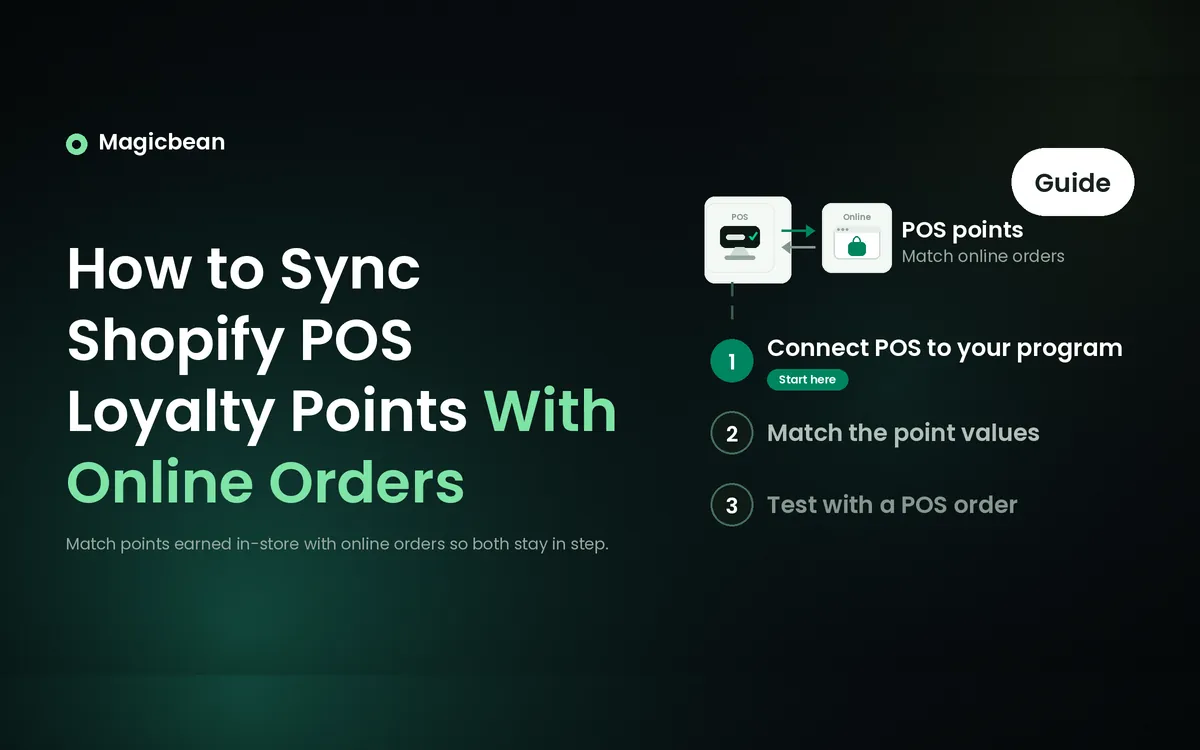
How to Sync Shopify POS Loyalty Points With Online Orders [2027]
A customer pays at your counter on Saturday. On Sunday she logs in to your online store and sees 0 points. The sale landed on a customer record. It wasn’t her customer record. It was a guest profile the cashier created at the till, or a second profile saved under her phone number.
Both online and in-store orders can feed the same loyalty balance because they sit on the same Shopify customer record. The catch is that the customer has to be attached to the POS order before payment. The six steps below walk you through the setup. If you haven’t built a program yet, start with how to create a loyalty program on Shopify and come back for the POS setup.
Summary
- The fix: turn on POS orders in your loyalty app’s earning settings, add its tile to the POS smart grid, and attach the customer to every cart before payment.
- Create at least one reward for in-store use. A customer may see a healthy points balance and still have nothing to redeem at the counter if all your rewards are online-only.
- What to check afterwards: run 6 test sales, including a phone-only customer and a refund, then compare each balance in the app admin and in the customer’s online account.
How Shopify POS loyalty points sync with your online store
There’s no second ledger to sync. A Shopify POS sale is an order in the same store as a web order, and a loyalty app awards points from orders. The app checks which customer is on the order and adds points to that customer’s balance. Customers see that balance online, and staff see it on the POS tile.
When a balance looks wrong, start with the order. Three common setup issues can explain what’s happened.
- No customer on the sale: the cashier rings it up as a walk-in, so the order has no customer and the points have nowhere to go.
- The wrong profile: the cashier creates a new customer with a phone number while the shopper’s online account uses an email, and the points land on the duplicate.
- POS orders switched off: the app’s earning settings count online orders only, so in-store sales earn nothing even with the right customer attached.
Each one has a setup step that prevents it, and a fix in the troubleshooting section further down.
What you’ll need
- Shopify POS updated to the latest version on every device. Smile’s tile requires it, and it’s the first check in Smile’s guide for a tile that won’t load.
- Shopify POS Lite or Pro. Smile’s POS tutorial covers both. The one feature in this guide limited to POS Pro is Love Loyalty’s printed-receipt balance.
- The store owner login, or a staff account with the Customize smart grid permission, to add app tiles.
- A loyalty plan that includes POS. The table below shows where it starts.
- About 30 minutes for setup, plus time for 6 test sales.
| App (Shopify App Store name) | POS starts on | Monthly orders included | In-store extras |
|---|---|---|---|
| Smile: Loyalty Program Rewards | Every plan, including Free | 200 on Free | POS amount, percentage and free product rewards. No native Wallet passes |
| Love Loyalty Program & Rewards | Professional, $12/month | 500 | VIP tier and paid membership shown on the tile. Wallet passes from Growth ($79/month) |
| Joy Loyalty Program Rewards | Advanced, $129/month | 2,000 | Points estimate for the cart, points summary after checkout, Wallet passes |
| BON Loyalty Program & Rewards | Basic, $29/month | 500 | POS amount, percentage and product discounts. No Wallet passes |
| LoyaltyLion Loyalty Program | Classic, from $199/month | From 500 new-customer orders | 6 POS apps, no limit on POS locations, Loyalty Pass QR as a paid add-on |
| Yotpo: Loyalty Rewards Program | Every plan (Free only under 100 orders a month, Pro from $199/month) | 500 on Pro | Rewards set to In Store & Online appear at the till |
| Growave: Loyalty & Wishlist | Entry, $15/month | 500 | Redeem rewards tile. QR lookup and Wallet pass from Growth ($199/month) |
Prices are monthly and come from each app’s pricing page, checked between September and November 2026. For cost at higher order volumes, see Shopify loyalty app pricing compared. If you’re still choosing an app, our guide to the best Shopify loyalty apps for POS compares them for in-store use.
POS also comes up rarely in each app’s own reviews. It appears in 2.7% of Love Loyalty’s 186 written reviews, 1.4% of LoyaltyLion’s 142, 1.3% of Smile’s 159, 1.1% of BON Loyalty’s 186 and 0.5% of Joy’s 184, according to Magicbean’s results by app. These are mention rates. They show how often merchants bring up POS and say nothing about how well each integration works.
Merchants rarely write about in-store loyalty at all. In Magicbean’s study of 3,410 Shopify loyalty app reviews, only 13 of 739 rewards praise mentions (2%) praised a program for working in store too. That’s a thin public record to lean on, so the test sales at the end of this guide will tell you more about your setup than reviews can.
How to set up Shopify POS loyalty points sync in 6 steps
I’ll use Smile for the walkthrough because its help center lays out each POS setting. Under each step, I’ve added notes for the other apps where their setup works differently.
Step 1. Turn on POS orders in your loyalty app’s earning settings
Smile can count online orders, in-store orders or both. If it’s set to online only, a sale with the right customer attached still earns nothing.
- In Smile Admin, go to Settings > General > Platform.
- In the Orders settings card, click Edit.
- Select Online and in-store.
- Click Save.
From then on, in-store orders with a customer attached earn points under your normal earning rules (Smile’s in-store setup guide).
Where other apps differ
- Love Loyalty: in-store sales earn through the same Place an order rule as online orders. By default it awards points once the order is paid.
- Joy: each earning and redeeming program has its own channel setting, so open every program you want in store and add the POS channel.
Step 2. Add the loyalty tile to the Shopify POS smart grid
The tile is where staff see a balance and apply rewards. Without it, nothing loyalty-related shows at the till.
- In Shopify admin, go to Point of Sale > Settings > Smart grid.
- Select the smart grid your location uses and click Customize.
- Click Add tile > Embedded apps > Smile.io > POS Loyalty Program.
- Click Apply, then Save.
You should see the Smile tile on the POS home screen within a few minutes (Smile’s POS tile guide). Smart grid layouts can differ by location, so repeat this for every layout your stores use. A tile added on a device through Add tile > App only changes the location logged in on that device.
Where other apps differ
- Love Loyalty: on the device, tap Add tile > App > Love Loyalty Program and add its POS UI extension. Two tiles appear, one for redeeming rewards and one for adding a paid membership to the cart (Love Loyalty’s POS guide).
- Joy: choose Joy Loyalty POS Extension. The older Joy: Loyalty program (Legacy) tile is deprecated.
- LoyaltyLion: the integration adds 6 POS apps, including tiles for points and rewards, member search and pass scanning, plus a screen that shows points earned after checkout.
Step 3. Create rewards that work at the counter
Smile’s online rewards don’t appear at the till. A member with 500 points and only online rewards sees a balance on the tile and nothing to redeem.
- In Smile Admin, go to Program > Points.
- Click Add ways to redeem.
- Select POS amount discount, POS percentage off or POS free product.
- Set the points cost and the discount value, then click Save.
POS free product rewards aren’t linked to a product in your catalog. Staff hand over the item and confirm the redemption in the Smile tile.
Where other apps differ
- Love Loyalty: there’s no separate POS reward type to create. The redeem window shows the program’s amount-off rewards, plus an Existing discounts tab where staff apply a code the customer already claimed online.
- Joy: POS supports points for a discount amount, a percentage discount or free products, and each redeem program needs the POS channel turned on.
- BON Loyalty: go to Point programs > Redeem points and enable POS amount discount, POS percentage discount or POS product discount.
- LoyaltyLion: a reward shows in POS only when POS is one of its sales channels and the reward is available in the customer’s country. Gift card, free shipping and subscriber rewards don’t work in POS.
Step 4. Give staff access to the loyalty tile
Smile’s POS features are open to every staff role, so with Smile this step is mostly about who can edit the smart grid.
- Give the person setting up tiles the Customize smart grid permission.
- Log in to POS as a cashier and open the loyalty tile to confirm it loads.
Where other apps differ
- Joy: a “Check [staff name]’s permissions” message on the tile means that staff account can’t use the Joy app yet.
- LoyaltyLion: staff can’t add or remove points at the till until you allow it under Settings > Program settings > POS > Manual points adjustments.
Step 5. Attach the customer before you take payment
This step decides whose balance the points land on. Smile needs an email, name or phone number linked to the POS order to award points. Only program members can redeem, so adding a customer record alone isn’t enough to make the tile light up.
- Tap Add customer at the top of the cart.
- Search by email first. Shopify treats email as a customer’s unique identifier, so it’s the search most likely to find their online account.
- If nothing matches, ask which email they use online before you create a new customer.
- Add the products and take payment.
Adding the customer after payment is too late. Rivo’s help center lists a customer added after the POS order as a cause of missing points, and Smile doesn’t recalculate points for items added to a completed order.
Where other apps differ
- Love Loyalty: a shopper without an online account still earns, as long as a Shopify customer record is on the cart. Redeeming needs an account. Once the customer is added, the cart shows their VIP tier and paid membership.
- Joy: with the customer and products in the cart, the tile shows the balance and an estimate of the points the order will earn.
- BON Loyalty: the tile is only clickable when the customer has enough points for a reward.
Step 6. Optional: Show balances after checkout or add Wallet passes
- Wallet passes: Love Loyalty includes them from Growth ($79/month), Joy from Advanced ($129/month) and Growave from Growth ($199/month). Staff scan the pass to find the customer, which skips the search in Step 5.
- Post-purchase screens: Joy and LoyaltyLion can show the points an order earned on the POS screen after checkout, with no code.
- Printed receipts: Love Loyalty has a receipt setup that prints the points balance at POS Pro locations.
What syncs between Shopify POS and online, and what doesn’t
Once an order is attached to the right customer, the points sit in one shared balance. The differences between apps show up when customers try to use those points at the counter.
| Data | Syncs between POS and online? | Notes |
|---|---|---|
| Points balance | Yes | One balance per Shopify customer record. Two profiles for one shopper means two balances |
| Points earned on POS orders | Yes, once POS orders are switched on | Needs a customer on the order (Steps 1 and 5) |
| Rewards redeemed at the till | Only rewards set up for POS | Smile, BON Loyalty and LoyaltyLion show only POS-enabled rewards on the tile |
| Codes claimed online, used in store | Depends on the app | Love Loyalty’s Existing discounts tab applies them at the till |
| Gift card, free shipping and subscriber rewards | No, in LoyaltyLion | LoyaltyLion lists them as not working in POS. Growave’s tile can’t apply gift card or store credit rewards to the cart |
| VIP tier and paid membership | Shown at the till in Love Loyalty | Love Loyalty’s tile shows both once the customer is added |
| Shopify store credit | Yes, natively | Needs Shopify’s new customer accounts, store credit turned on for the online store and staff permissions |
| Refunds on POS orders | Depends on the app | Rivo logs “POS: Points refunded” on the customer’s activity when a POS redemption is refunded |
| Wallet passes | Yes, same balance | Love Loyalty, Joy and Growave passes are scanned at the till on the plans that include them |
Why loyalty points aren’t syncing between Shopify POS and online
Start with the order and customer record, then check the app settings. A sale can look complete even when no customer was attached or the points landed on a second profile.
1. The sale had no customer, or the customer was added afterwards
Smile awards POS points only when a customer identifier is linked to the order. Rivo lists a customer added after the POS order as a cause of missing points.
- Open the order in Shopify admin and check the Customer card.
- If it’s empty or shows the wrong person, add the missing points by hand on the right customer’s profile in your loyalty app.
- Brief staff to tap Add customer before scanning the first item.
2. The customer has two profiles
Duplicates often appear when someone shops online with an email address but gives the cashier a phone number. Apple Pay can also pass a different email address. Shopify lets you merge the two profiles under Customers > open a profile > Customer data > Merge customer. Before doing that, check how your loyalty app handles points on both records.
| App | What a Shopify merge does to points | What to do |
|---|---|---|
| Smile | Deletes the removed profile’s points balance, order history and pending referrals (Smile’s guide) | Note that balance first, merge, then adjust the kept profile in Smile. Check that reassigned orders from the past year don’t earn points twice |
| Love Loyalty | No merge guide published. Each balance sits in the customer’s Loyalty program points metafield | Note both balances, merge, then manually adjust the kept profile’s balance in its Loyalty program points metafield under Shopify Admin > Customers (Love Loyalty’s guide) |
| BON Loyalty | Needs merging inside BON first (BON’s guide) | In BON, go to Customer data > More actions > Merge, then finish the merge in Shopify. BON combines points, history and discounts and drops duplicate sign-up or birthday points |
| LoyaltyLion | Combines points, rewards and activity history automatically (LoyaltyLion’s guide) | Merge in Shopify first and LoyaltyLion follows |
| Rivo | Points can stay on the profile that earned them (Rivo’s guide) | Compare both profiles in Rivo after the merge and contact Rivo support if data looks split. Shopify blocks some merges for profiles with store credit |
3. POS orders are switched off in the app
In-store sales earn nothing when the app counts online orders only.
- Open the app’s order settings. In Smile that’s Settings > Platform > Order settings. In Rivo it’s Settings > Orders > Order channels.
- Include POS orders. Rivo’s option is Online and POS (Default).
- Add points by hand for in-store sales made before the change.
4. The plan doesn’t include POS
Joy’s help center says points show as zero on POS for stores on its Free plan. Joy’s POS integration starts on Advanced ($129/month). Check the plan table above against your current plan, then upgrade or tell staff not to use the tile until you do.
5. POS is showing an older balance
Growave notes that Shopify POS refreshes customer data periodically and caches customer profiles on the device, so points earned online can take a short while to appear at the till.
- Remove the customer from the cart and add them again.
- Update the Shopify POS app.
- If the tile shows “App failed to load”, check that your store network allows cdn.shopify.com, which Smile’s troubleshooting guide lists as required.
6. A guest is trying to redeem
Earning and redeeming have different rules. Smile lets only members redeem, so the tile stays unlit for a guest. Love Loyalty lets guests earn on any sale with a customer record attached but needs an account to redeem.
- Ask the customer to create an online account with the same email that’s on their POS profile.
- Redeem on their next visit, once the tile shows their balance.
Test checklist before your first in-store day
Run these 6 sales on a real device before a busy day. Check each result in the loyalty app’s admin and in the customer’s online account.
- An existing online member, found by email. The points should match in both places within a few minutes.
- A customer who only gives a phone number. Confirm the sale didn’t create a duplicate of an email profile you already have.
- A new customer created at the till with the email they’ll use online. Log in to the online store as them and check the balance.
- A redemption with a POS reward. The Shopify order should show the discount, and the balance should drop by the points cost.
- A code claimed online and used in store. In Love Loyalty it appears under Existing discounts. In other apps, find out whether the code applies at all and tell staff the answer.
- A refund on a sale that earned points. Check whether your app takes the points back and where it logs that.
Before you go live
Once all six tests pass, give cashiers one simple rule to remember. Add the customer before payment. That small pause is what keeps a Saturday sale from turning into Sunday’s missing-points question.
FAQs
How do you sync loyalty points between Shopify POS and your online store?
Use a loyalty app with Shopify POS support, include POS orders in its earning settings and add its tile to the smart grid. Points then land on the same Shopify customer record as online orders. Staff must attach the customer to the cart before payment, or the points have nowhere to go.
Can I run one loyalty program across my Shopify online store and physical store?
Yes, as long as your physical store uses Shopify POS and your loyalty app supports it. Smile includes POS on every plan, Love Loyalty from its $12/month Professional plan and BON Loyalty from Basic at $29/month. Joy’s POS support starts on Advanced at $129/month, so check your plan first.
Do customers need an account to earn points in store?
Every app needs a Shopify customer record on the POS sale, but only some need an online account. Love Loyalty lets customers without an account earn and asks them to create one before redeeming. Smile lets only program members redeem, and Growave awards POS points automatically only to customers with an existing Shopify account.
Why aren’t my online rewards showing in Shopify POS?
Most loyalty apps only show rewards set up for POS on the tile. Smile, BON Loyalty and LoyaltyLion each need POS-enabled rewards, and LoyaltyLion excludes gift card, free shipping and subscriber rewards from POS. Love Loyalty has an Existing discounts tab, so staff can apply a code the customer already claimed online.
Can customers redeem store credit in Shopify POS?
Yes, Shopify store credit works at POS once three conditions are met. The store needs Shopify’s new customer accounts, store credit turned on for the online store and staff with permission to redeem it. Rivo’s POS tile converts points to store credit, and Growave’s tile does the same before staff pick Store credit as the payment method. Our loyalty app vs Shopify store credit guide compares the two setups.
Why don’t updated points show right away in Shopify POS?
Shopify POS refreshes customer data periodically, so a balance changed online can take a short while to reach the till. Wait a few minutes, then add the customer to the cart again. If the balance is still wrong, check the customer for a duplicate profile before you add points by hand.
Emily Johnson
Writes clear, practical guides that help Shopify store owners make more money and save time. Instead of confusing technical jargon, she focuses on what actually matters to a business: how the right tools can boost sales, automate boring tasks, and make customers happier.